
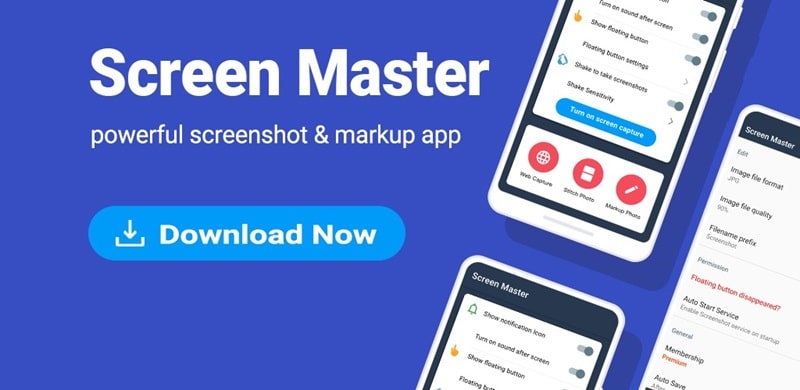
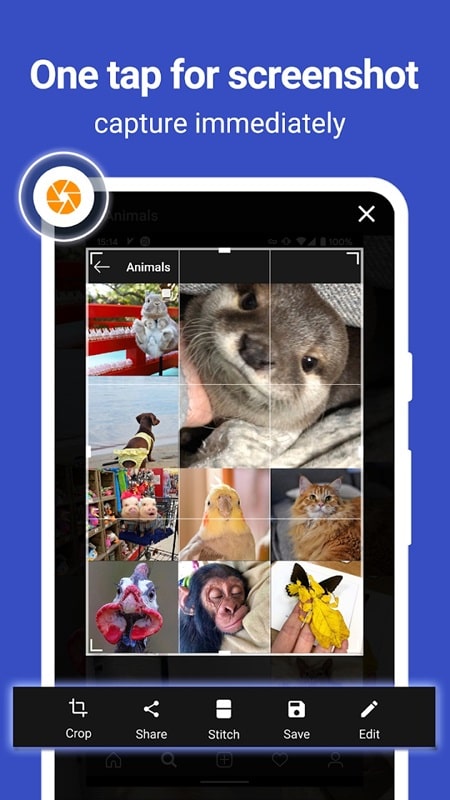
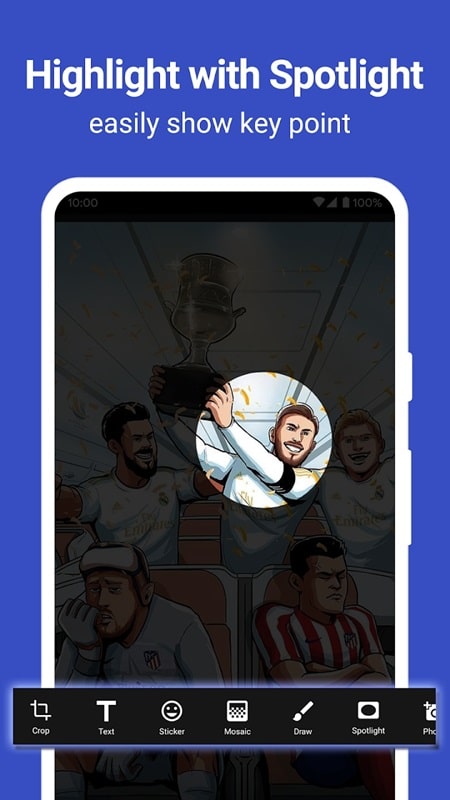
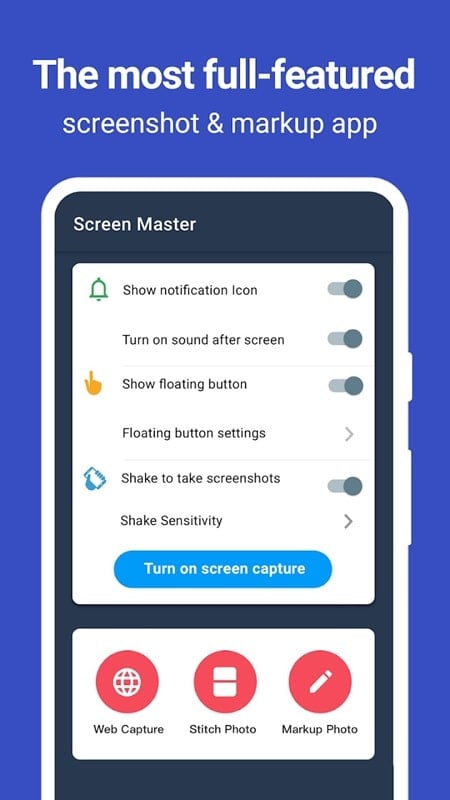

ScreenMaster is a powerful and user-friendly screenshot and screen capture app that allows you to capture and annotate anything on your screen with ease. Whether you're taking screenshots of documents, web pages, or apps, ScreenMaster gives you the tools to quickly capture, edit, and share your images. With features like image cropping, drawing tools, and annotation options, ScreenMaster makes it easy to highlight important details, add text, or even blur sensitive information. The app is perfect for anyone who needs to capture, edit, and share visual information for work, study, or personal use.
Features of ScreenMaster:
1. Easy Screenshot Capture: Capture your screen instantly with a simple touch or swipe, making it quick and easy to save anything you see on your device.
2. Powerful Annotation Tools: Use a variety of annotation tools such as text, arrows, highlights, and shapes to mark up your screenshots and emphasize important details.
3. Crop and Edit Images: Crop, rotate, and resize your screenshots to focus on specific areas, and make quick edits to improve the clarity and focus of the image.
4. Scroll Capture: Take long or scrolling screenshots to capture entire web pages, chat conversations, or documents that extend beyond the screen, making it easier to share and save larger content.
5. Blur and Hide Sensitive Information: Use the blur tool to obscure sensitive information in your screenshots, such as passwords, personal data, or confidential details.
6. Easy Sharing Options: Once you’ve captured and edited your screenshots, share them instantly via email, messaging apps, or social media with a few taps.
Playing Tips of ScreenMaster:
1. Use the Scroll Capture for Web Pages: If you need to capture a long webpage or chat history, use the scroll capture feature to take a full-length screenshot without multiple images.
2. Explore Drawing Tools for Creative Edits: Experiment with the drawing and text tools to add personal touches to your screenshots, whether for instructional purposes or creative projects.
3. Organize Your Captures: Keep your screenshots organized by using folders or categories to easily find and manage them later, especially if you take many screenshots.
4. Use the Crop Tool for Focused Captures: Instead of capturing everything on the screen, use the crop tool to focus only on the relevant portion of the screen, helping to eliminate distractions in the final image.
5. Take Advantage of Gesture Shortcuts: Learn the gesture shortcuts, like swiping to capture or using the floating button, to speed up your screenshot-taking process.
6. Annotate for Clarity: After taking a screenshot, immediately use the annotation tools to add helpful notes, arrows, or highlights, which can make your images much clearer when shared.
Conclusion:
ScreenMaster is an essential app for anyone who regularly takes screenshots and needs powerful tools for editing and sharing them. With its versatile features like scrolling capture, annotation tools, and image editing options, it provides everything you need to enhance your screen captures and share them with ease. Whether you're using it for work, school, or personal projects, ScreenMaster offers an intuitive interface and robust functionality that can save you time and improve the quality of your captured content. If you're looking for a simple yet powerful screenshot tool, ScreenMaster is the perfect choice.